How to get your data into AOS
You don’t need to be a computer person. You take a file out of the app you already use (QuickBooks, Xero, Square, a spreadsheet, whatever it is) and put it into AOS. It takes about ten minutes, and nothing in your other app changes.
- Export a fileFrom your accounting or sales app. It will be a CSV or Excel file.
- Upload it to AOSOn the Import data page. AOS reads the file right in your browser.
- Check and importAOS matches the columns for you. You look it over and press Import.
What should I import?
Start with the one that matches how you get paid. You can add the others any time.
| Import this | If you… | It fills in on your dashboard |
|---|---|---|
| Invoices | send invoices to customers | Invoiced revenue, money owed to you, what’s overdue, recent invoices |
| Orders & sales | sell in a shop, online or with a card reader | Revenue and order trends by month |
| Customers | want names next to your numbers | Who you sell to; customer names on invoices and orders |
| Products & inventory | keep a catalog or stock list | Your catalog and stock levels |
Pick your app
Click the one you use and follow the steps. Don’t see yours? Use “Something else”.
- QuickBooks Online
- QuickBooks Desktop
- Xero
- FreshBooks
- Wave
- Zoho Books
- Square
- Shopify
- A spreadsheet or paper
- Something else
QuickBooks Online
Import Invoices first, then Customers.
Your invoices
- In the left menu click Reports and type Invoice list in the search box. Open that report.
- Set the Report period to the dates you want. “All dates” or the last 12 months both work.
- Click Run report, then the Export button at the top right, and choose Export to Excel.
- Open the file and save it as a CSV. If Excel opens it in “Protected View”, click Enable Editing first.
- In AOS choose Invoices on the Import data page.
Your customers
- Click Sales›Customers.
- Click the Export icon at the top right of the list (it sits near the Print icon). An Excel file downloads.
- Save it as a CSV, then in AOS choose Customers.
Can’t find the Export icon? Click the gear Settings›Export data, open the Lists tab, switch on the customer list and click Export to Excel.
The invoice list shows customer names and the Open balance, not emails. AOS handles that: it uses the name next to each invoice and works out what has been paid.
QuickBooks Desktop
Import Customers and Invoices.
Your customers
- Open the Customers menu, then Customer Center.
- Click the Excel button at the top of the window and choose Export Customer List.
- Choose Create a comma separated values (.csv) file and click Export. Give it a name and save it where you can find it.
Your invoices
- In the Customer Center click Excel again and look for Export Transactions. Choose Invoices as the type and pick your dates.
- No such option? Open a report that lists your invoices (look under Reports›Customers & Receivables), click Excel at the top of the report and choose Create New Worksheet.
- Then save it as a CSV from Excel.
QuickBooks Desktop looks different from year to year. If your screen doesn’t match, email us a screenshot at hello@aos.sarl and we’ll tell you what to click.
Xero
Import Invoices and Customers.
Your customers
- Click Contacts and choose the Customers group (or All).
- Click the three dots ⋯ at the top right and choose Export. A file called Contacts.csv downloads.
- In AOS choose Customers.
Your invoices
- Go to Sales›Invoices (in some versions it’s under Business) and open the All tab.
- Tick the box at the top of the list to select everything, or tick just the invoices you want.
- Click Export. A CSV file downloads. Glance at the number of rows to check it looks right.
- In AOS choose Invoices.
Xero’s file may not include email addresses. That’s fine. AOS needs an invoice number and a total, and uses a customer name if there is one. Check the “what’s owed” tip below after you import.
FreshBooks
Import Invoices and Customers (FreshBooks calls them clients).
Your clients
- Click Clients, then More Actions›Export Clients. A CSV downloads.
- With more than 1,000 clients you get several files. Import them one after another; AOS adds to what’s already there.
Your invoices
- Click Invoices, then More Actions›Export Invoices.
- Pick a date range (a custom range works) and the currency, then click Download CSV.
Wave
Customers come out easily. Invoices take one extra step.
Your customers
- Open Business settings, find Data Export (under “Other”) and choose Accounting.
- Wave emails you a link. Download the files; one of them is your customers.
Your invoices
- Wave says invoices can’t be exported in bulk. Its answer is Wave Connect, an add-on for Google Sheets that sends your invoices into a sheet.
- When they’re in the sheet, click File›Download›Comma-separated values (.csv).
If that sounds like too much, email hello@aos.sarl. Customers alone already make a good start.
Zoho Books
Import Invoices and Customers.
Your customers
- Click Sales›Customers, then the More (three dots) icon at the top right and Export Customers.
- Choose Customers and All, pick CSV as the file type, and click Export.
Your invoices
- Click Sales›Invoices, then More at the top right and Export Invoices.
- Choose the statuses and dates, set the file format to CSV (not XLSX) and click Export.
Zoho exports up to 25,000 rows at a time. For a bigger business, export a year at a time.
Square
Import Orders & sales, and Customers if you keep a customer list.
Your sales
- In the Square Dashboard click Reports›Transactions (in some accounts it’s under Sales).
- Set the date range, then click Export and choose Transactions CSV.
- In AOS choose Orders & sales.
Your customers
- Click Customers›Customer directory, then Import / Export›Export customers.
- Choose All customers, click Export, then Download.
Square only exports an email address if it’s saved on the customer’s profile, and the sales file may leave out refunds.
If AOS doesn’t guess which column is the total, open that dropdown and pick the money column you want counted as revenue.
Shopify
Import Orders & sales, then Customers and Products.
Your orders
- In Shopify admin click Orders, then Export.
- Choose All orders (or orders by date) and CSV for Excel, Numbers, or other spreadsheet programs, then click Export orders.
- Big exports are emailed to you instead of downloading. Check your inbox.
- In AOS choose Orders & sales.
Your customers and products
- Click Customers, then Export, All customers and Plain CSV file.
- Click Products, then Export, All products and the spreadsheet CSV option.
Shopify puts every item of an order on its own row. AOS skips the extra rows and tells you how many it skipped. That’s normal. The orders it keeps are counted once each.
A spreadsheet, or paper
Works for any of the four kinds of data.
- On the Import data page in AOS, choose what you’re importing and click Download a template.
- Open the template in Excel, Google Sheets or Numbers. It has one example row. Replace it with yours, one row per invoice, customer, sale or product.
- Type dates like 2026-03-14. That way nobody has to wonder whether it’s March or the 14th.
- Save it as a CSV and upload it.
Your invoices are in a paper book? Start with this month and last month. A few rows is plenty to see how AOS works.
Something else
Sage, MYOB, Clover, WooCommerce, Etsy, or anything not listed.
- Open the screen that lists your invoices (or sales, or customers), one per row.
- Look near the top for a button called Export, Download or More actions. Or open Reports and search for “invoice list”, “sales” or “customers”.
- Choose CSV if it asks for a type. Excel is fine too; you’ll turn it into a CSV below.
- Searching the app’s help for the word export usually finds the exact button.
Only offers PDF? Email hello@aos.sarl with the name of the app and we’ll look for another way.
Turn an Excel file into a CSV
AOS reads CSV files. Many apps give you an Excel file (ending in .xlsx), and that takes ten seconds to convert:
- Excel on Windows: File›Save As, then under Save as type choose CSV UTF-8 (Comma delimited) (*.csv) and click Save. If Excel asks about keeping the format, say Yes.
- Excel on a Mac: File›Save As, then under File Format choose CSV UTF-8 (Comma-delimited) (.csv).
- Google Sheets: File›Download›Comma-separated values (.csv).
- Numbers (Mac): File›Export To›CSV.
One thing to watch: a CSV holds a single sheet. If your Excel file has several tabs, save the tab that lists the invoices (or sales, or customers).
Upload it to AOS
Log in (or start your free trial) and click Import data in the left menu.
- Choose what you’re importing. Invoices, customers, orders or products.
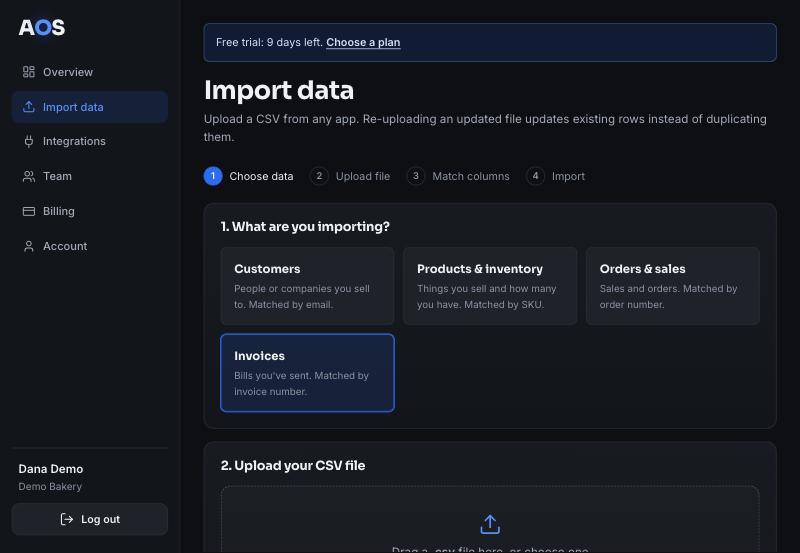
- Choose your file. Click Choose file, or drag the file onto the box. AOS reads it right in your browser. The first row must be column names, the file can be up to 10 MB, and AOS reads up to 50,000 rows.
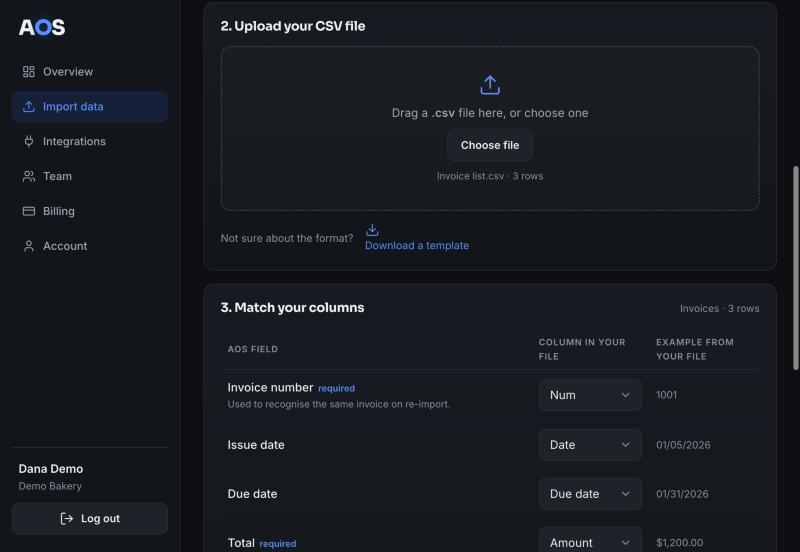
- Check the match. AOS looks at your column names and matches them to its fields for you. Look down the list: each AOS field shows the column it picked and an example from your file. Change any dropdown that’s wrong, or choose Don’t import to skip a column. Fields marked required need a column. If your dates look like 03/14/2026 choose Month / Day / Year; if they look like 14/03/2026 choose Day / Month / Year.
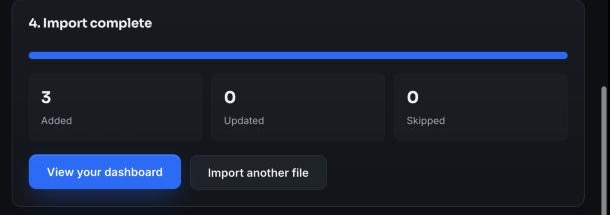
- Press Import. You’ll see how many rows were added, updated and skipped. Then click View your dashboard.
Make sure “what’s owed” is right
For invoices, AOS works out what a customer still owes from one of these columns in your file, whichever you have:
- Status (Paid, Open, Sent, Overdue…)
- Amount paid
- Balance or Amount due or Open balance
If your file has none of these, AOS can’t tell which invoices were paid, so it treats every invoice as unpaid and the Owed to you figure on the dashboard will be too high. If that number looks wrong, export again with a report that includes one of those columns and import it. It’s safe: AOS updates the invoices it already has.
Questions
Did I just create duplicates when I uploaded the same file twice?
No. AOS recognises invoices by invoice number, customers by email, orders by order number and products by SKU. Uploading an updated file changes the rows that are already there and adds the new ones.
Some rows were skipped. What now?
AOS lists the first few skipped rows with the reason, for example a date it couldn’t read or an amount that isn’t a number. Fix those in your file and upload it again. The rows that already went in are simply updated.
My dates came out wrong.
Choose the other date order in step 3 (“Month / Day / Year” or “Day / Month / Year”) and import again. Dates typed as 2026-03-14 are never ambiguous.
AOS won’t take my file.
It must be a CSV (not .xlsx), under 10 MB and under 50,000 rows. For a bigger file, split it by year and import the pieces one at a time.
The totals don’t match my accounting app.
AOS counts invoices that are open or paid, not drafts or voided ones, by invoice date, and shows the 30 days up to your most recent invoice. Compare the same period. If the money owed is off, see the tip above.
Can AOS change anything in my accounting app?
No. AOS only reads the file you upload. It never logs in to your other apps.
Does AOS keep my file?
Your browser reads the file and sends AOS the rows you choose to import. AOS stores those rows, not the file. You can delete everything any time from the Account page. See the Privacy Policy.
Start a free 14-day trial, no card needed, and bring in your first file. If you get stuck at any point, email hello@aos.sarl and say which app you use.
These steps follow each app’s own public help pages as of October 2026. Apps move their buttons around, so if something looks different, search the app’s help for “export” or email us. AOS isn’t affiliated with, or endorsed by, any of the companies named here. Their names are used only to describe what to click.